Set up and join an Enshrouded dedicated server
Install the Enshrouded dedicated server, open UDP port 15637 and join by IP, with the memory and CPU it really used on HostForge: 1.1 GB and 1–1.5 cores.
The Enshrouded dedicated server runs on Windows. It keeps your world online without anyone hosting from their game, and your group joins it by IP address with a password. Keen recommends 6 CPU cores, 16 GB of memory and 30 GB of free disk space for 4–6 players, but a small group needs much less.
What it really uses
Measured on HostForge's Enshrouded servers in the last week of October 2026: six servers, with up to three players at once, on worlds less than two weeks old. HostForge runs the Windows server under Wine on Linux.
- Memory: about 1.1 GB, with or without players. It barely moved when people joined.
- CPU: 1 to 1.5 cores with one to three players. Even with nobody on, it kept about a third of a core busy.
- Disk: the installed server takes about 7.5 GB; leave room for the world and its backups.
For up to three players, a PC with 4 free cores and 4 GB of free memory is plenty. Plan for more as your group grows.
1. Install the server
In your Steam library, turn on Tools and install Enshrouded Dedicated Server. It comes with the game. Or download it with SteamCMD (Steam app 2278520):
steamcmd +force_install_dir C:\enshrouded-server +login anonymous ^
  +app_update 2278520 validate +quit
Linux is not supported by Keen; the Windows server can run under Wine or Proton, which is what HostForge does.
2. Start it once
- Open the server folder and run
enshrouded_server.exe(not Steam's Launch button). - Wait until the window shows
[Session] 'HostOnline' (up)!. The server has createdenshrouded_server.jsonand a new world in thesavegamefolder. - Stop it with Ctrl + C so it saves.
3. Set a name and passwords
Open enshrouded_server.json next to the .exe in a text editor:
name: the name in the server list.slotCount: players, 1 to 16.userGroups: one password per role. The password a player types decides what they may do. See passwords and roles in the settings guide.gameSettingsPreset: the difficulty, explained with every other setting in the same guide.
Save the file and start the server again.
4. Open the port
- The server uses one port, the
queryPort:15637UDP by default. - Allow it through Windows Firewall.
- At home, forward it from your router to the server's local IP address.
5. Join by IP
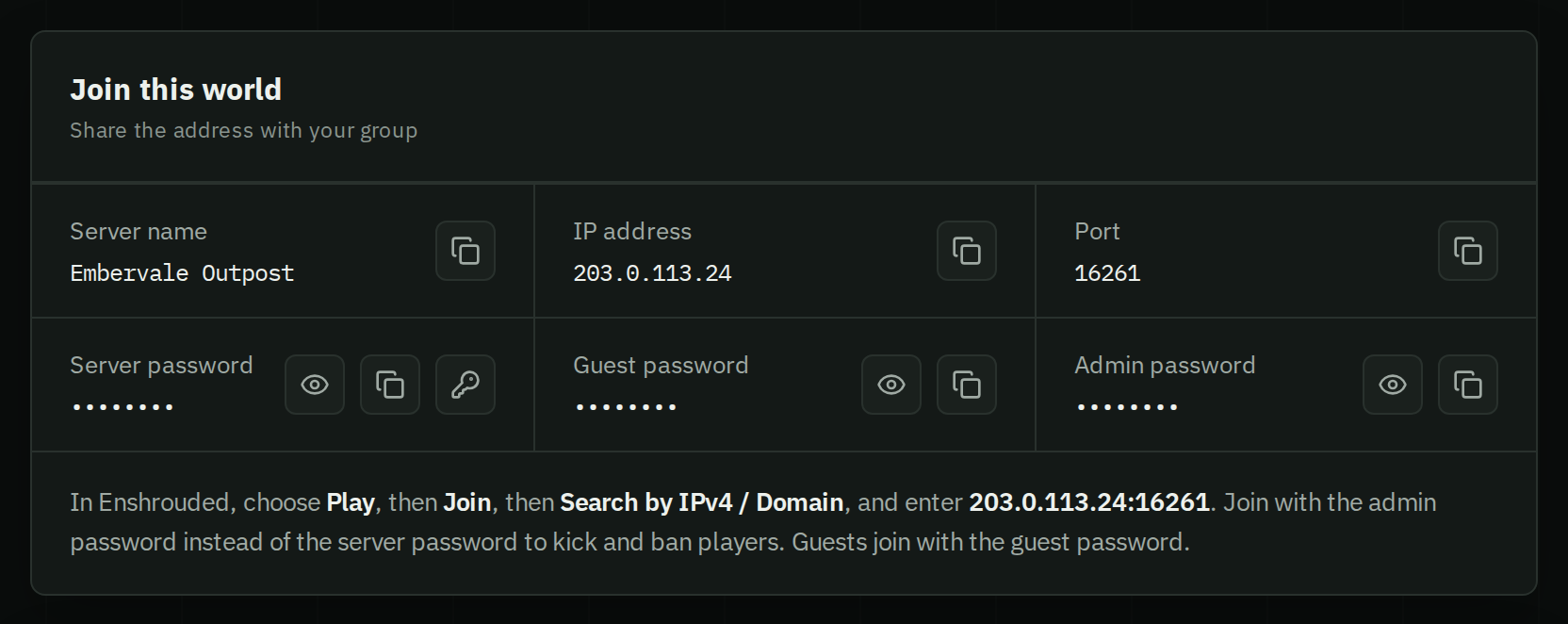
Each player needs the server's public IP address, its port (the queryPort) and a password.
- In Enshrouded, choose Play, then Join.
- Choose Search by IPv4 / Domain.
- Enter the address as
IP:port, for example203.0.113.24:15637. - Enter a password. Which one decides the player's role, from admin to visitor.
Other ways in
- Server list: in Join, turn on the filter to show dedicated servers and search for the name. Star a server to keep it at the top.
- Steam favorites: in Steam, open View › Game Servers › Favorites, select + and enter
IP:port. Favorites show at the top of the game's list.
If players can't join
- Nothing happens or it times out: the port is not open. Allow UDP 15637 (or your
queryPort) through the firewall and router. The server only uses IPv4. - Version mismatch: the game and the server must be on the same version. Update the server and restart it, or have the player update their game.
- Wrong password: passwords are case-sensitive, and each role has its own.
- Server full: some slots may be kept for one role, so a server can look full for guests before it is.
Keeping it running
- After an Enshrouded update, update the server (Steam or SteamCMD) and restart it, or nobody on the new version can join.
- The server saves every few minutes into
savegame. Copy that folder now and then as a backup. To bring a world you already have, see moving your world to a server.
Skip all of this
Pick Enshrouded, a name and a region, and start it. HostForge runs the server, opens the port, prepares each new game version so a restart moves you onto it, and backs the world up every day.
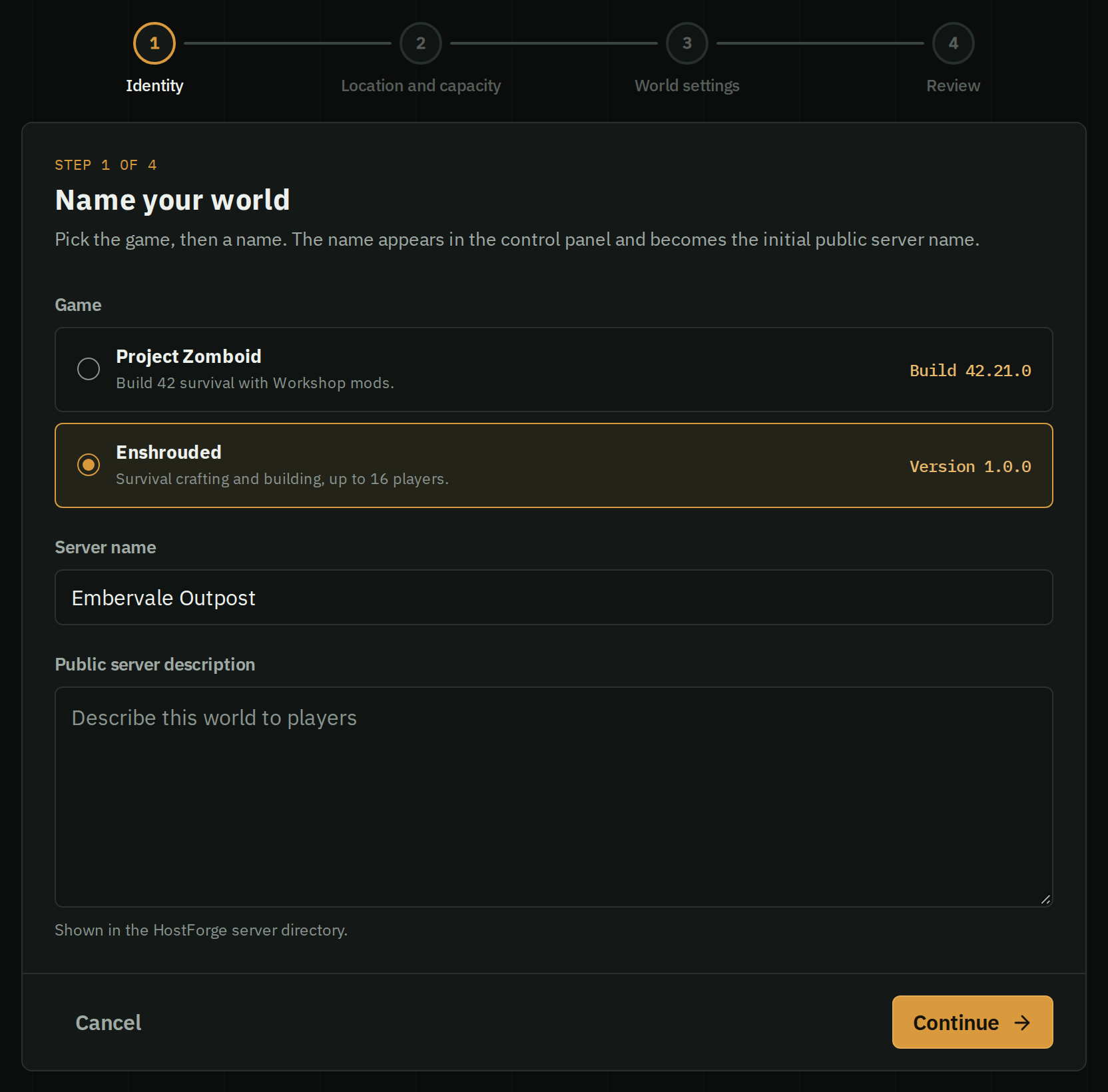
The server page shows the name, IP address, port and password to copy, and the join steps with your address filled in. Share the page and your group has everything.